Secure Edge Fabric
Creating IPsec tunnels for Secure Edge subscribers to access on-site file and application servers behind a firewall.
Environment 
- Datto Secure Edge
Description
Secure Edge Fabric allows for the creation and management of multiple tunnels to configured endpoints. Key features include:
-
Allows for more than one Site to Site IPsec tunnel to be configured.
-
Multiple IP subnets can be used per configured tunnel.
-
The remote gateway can be configured by IP address or hostname.
-
The tunnel can be created as Responder Only or to Initiate Connection​​.
-
The Conditional DNS forwarding enables Secure Edge to use multiple on-site DNS servers with different forwarding domains.
NOTE Requires Secure Edge Windows 2.0.11, MacOS 2.0.2, Android 1.1 and IOS 1.1 are required for Conditional DNS forwarding.
Tunnel Creation 
-
In Datto Network Manager, click Secure Edge in the Navigation menu, then select Fabric from the expanded options.
-
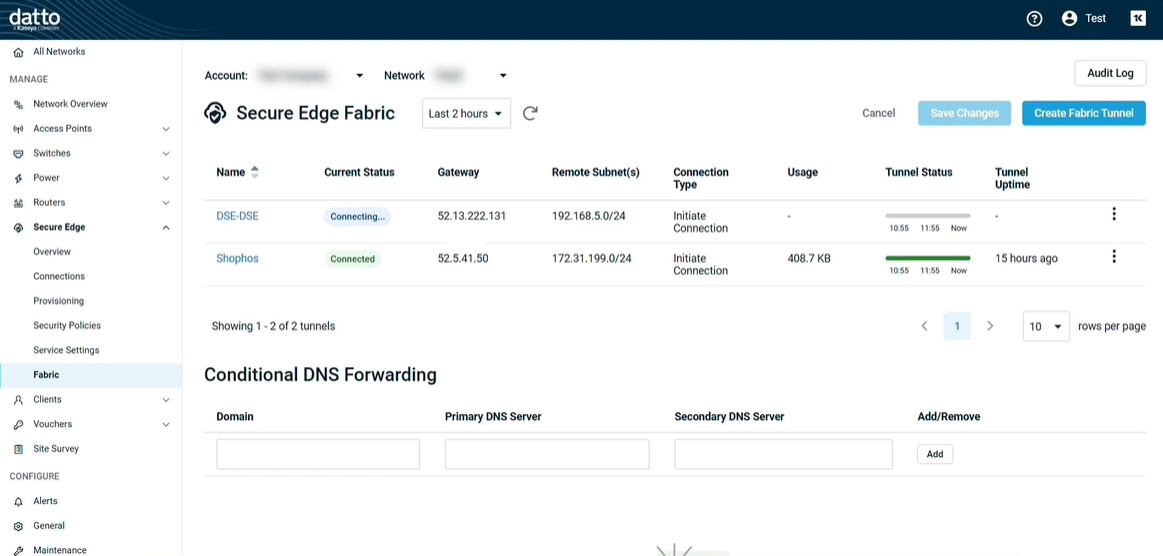
On the Secure Edge Fabric page, click Create Fabric Tunnel to create a new tunnel.
-
The pane will open with the tunnel options. Name the tunnel and fill out the following fields:
-
Tunnel type: IPsec is the only current tunnel type. More options will be added in the future.
-
Connection Type: Select from Responder Only or Initiate Connection.
-
Remote Gateway: Fill out the Gateway IP or hostname and its Identification. The Identification can be selected to be the same as the Gateway's IP/Hostname or Custom to allow a new address.
-
Local Identification: Either select Same as local IP Address or Custom to set a different address.
-
Remote Gateway Subnets: Enter the subnets included in the tunnel using CIDR subnet mask notation (/24, /23, etc.), separated by a comma if multiple are required.
-
Pre-shared Key: The key, hidden by default can be manually set and or copied using the Copy to Clipboard option.
-
IPsec Mode: Select the desired IPsec mode from the drop down.
-
Phase Settings: Select the desired algorithms, group, and lifetime for each of the two phases of the tunnel.
-
-
Save the changes once the settings are configured.
Management
Once created a tunnel can be managed using the three dot menu on the right of the page for that tunnel.
- Enabled/Disabled
- Connection reset
- Edited
- Deleted
Selecting the tunnel name from the Fabric page will open the Tunnel Status page for that tunnel. This provides information on the configuration selected, the usage, logging, and status overtime. It can also be used to edit the tunnel using the Edit Tunnel option.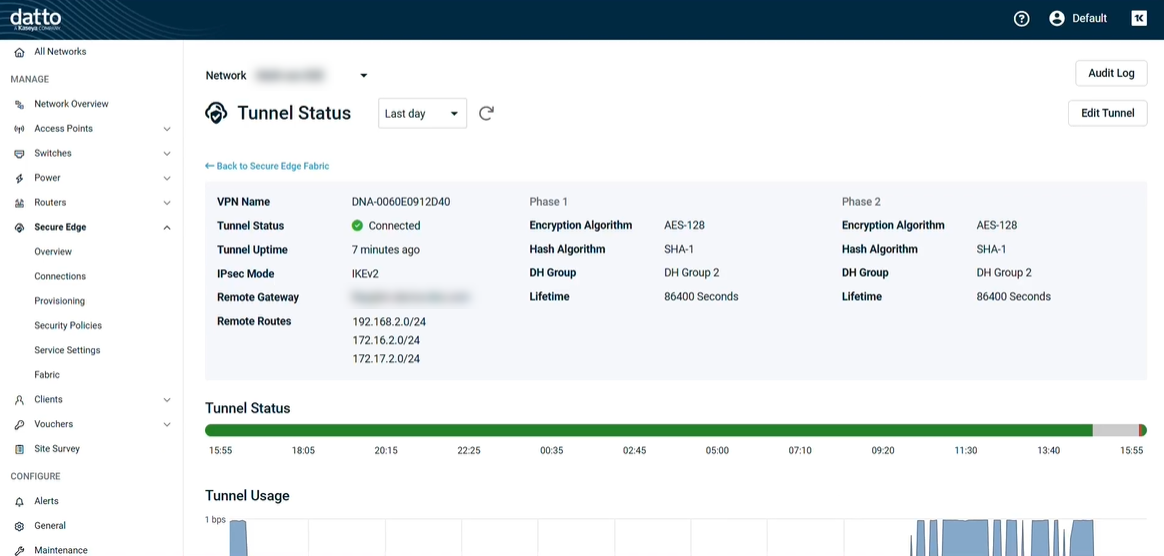
Conditional DNS Forwarding
Conditional DNS Forwarding is used to forward specific DNS queries to alternative DNS server based on the domain name.
Select Add Conditional DNS Forwarding Entries to create a new entry.
Fill out the Domain, Primary DNS Server, and Secondarys DNS Server to be added.


