GeoIP filtering in Secure Edge
GeoIP filtering is a cornerstone of on-premises firewall security, and with the evolution of cloud-based networking, customers expect the same robust controls in Secure Edge environments. GeoIP filtering provides granular control over traffic based on geographic origin and destination.
Overview 
GeoIP filtering allows organizations to block or allow traffic based on country-specific IP addresses. This capability is critical for reducing exposure to malicious traffic originating from high-risk regions and for enforcing compliance with regulatory requirements.
Key features and requirements 
-
Policy-Level Control: Enable or disable GeoIP filtering within each security policy.
-
Bidirectional Blocking: Impacts traffic both to and from a country.
-
Organized by Continent: Easier navigation for country selection.
-
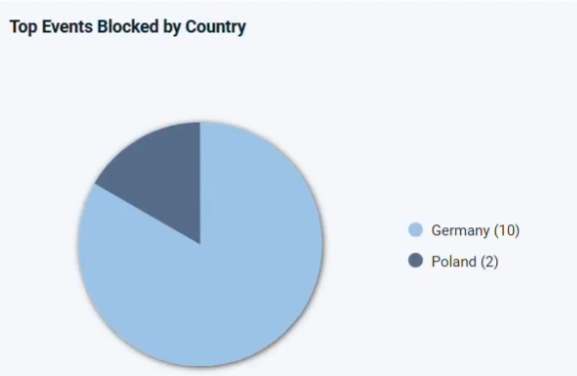
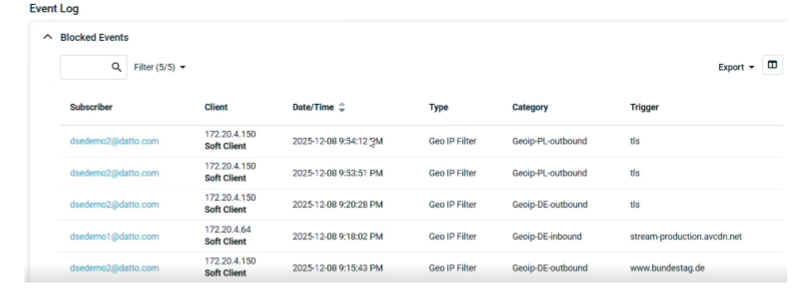
Visibility and Reporting: Pie chart for top blocked countries, event tables with export options.
-
Operational Safeguards: Backend cannot be blocked; gateways cannot block their own country; firewall rule priority maintained.
Exception handling
-
User-Based Exceptions: Allows specific users (e.g., executives traveling abroad) to bypass restrictions.
-
Address-Based Exceptions: Permits access to specific destination addresses or subnets within blocked countries.
Configuring GeoIP filtering in Secure Edge
-
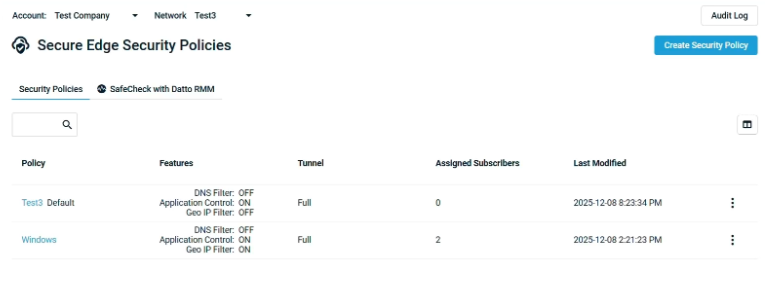
Navigate to the Secure Edge dashboard.
-
Go to Security Policies.
-
Select the policy for which you would like to enable GeoIP filtering.
-
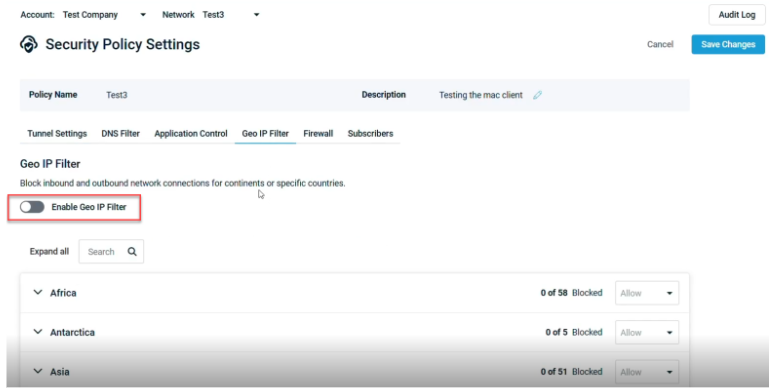
In the policy settings, locate the GeoIP Filter option.
-
Toggle on the Enable Geo IP Filter to activate filtering for this policy.
-
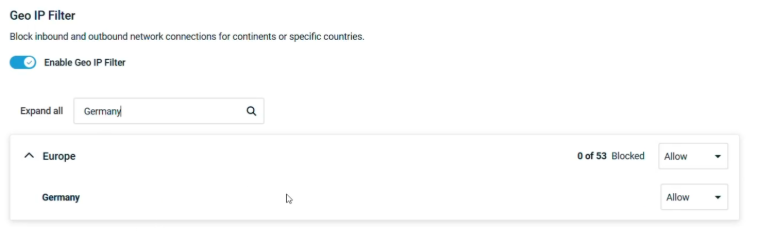
Use the continent-based selection menu to choose countries to block.
-
Select Block from the drop-down menu. This will block both incoming and outgoing traffic.
NOTE You cannot block the host country.
-
Click Save Changes.
Setting exceptions
-
Navigate to Exception Lists.
-
Add User-Based Exceptions for specific accounts.
OR
Add Address-Based Exceptions for static IPs or subnets.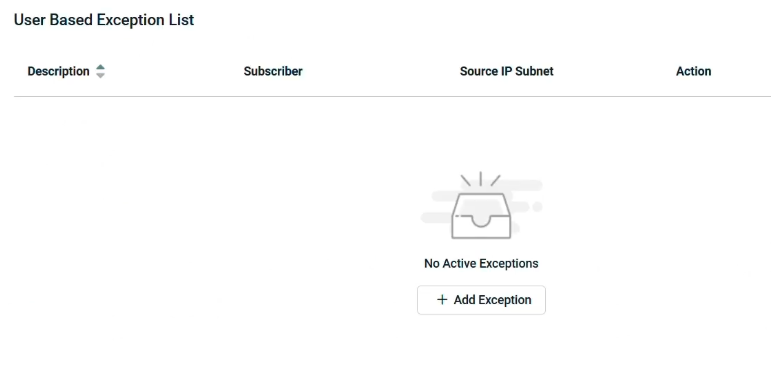
-
Click + Add Exception.
-
Type in the details for the subscriber or address you would like to make an exception for.
-
Click the check mark icon to save.
Reviewing blocked events
-
Go to the Overview page.
-
Check the Top Events Blocked by Country pie chart for visual insights.
-
Scroll to the Blocked Events table to see detailed logs:
Exporting logs
-
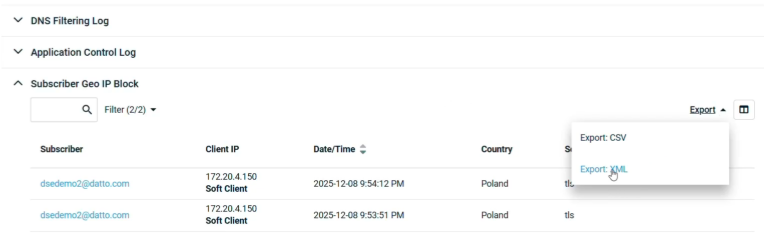
Click the Export dropdown list on the right-hand side of the Blocked Events table.
-
Choose Export CSV or Export XML format for reporting:
Verifying Syslog integration
Ensure syslog is configured to receive GeoIP filter events for centralized monitoring. Refer to the Secure Edge Gateway section in Leveraging the Datto Networking Managed SOC integration for details.


